


Splice - Video Editor & Maker
3.64.33K Reviews
App Specs
- Version
- Varies with Device
- Updated On
- License
- Free
- Downloads
- 10,000,000+
- Developer
- Bending Spoons
- Categories
- Video Players & Editors
- Platform
- Android, iOS
Screenshots
 Analysis by AppCompare
I judge a mobile editor less by how many buttons it can fit on screen than by whether I can find the right control, understand what it will change, and finish a project without fighting the interface. That matters even more when someone is editing in a noisy room, working one-handed, or trying to read small labels on a phone. In my experience, Splice is approachable enough for casual projects, though a touchscreen timeline still asks for patience and precise taps.
That balance makes Splice - Video Editor & Maker most appealing to people who want to assemble social clips, family highlights, or a short travel recap without moving to a desktop. I would not treat it as a replacement for every professional editing workflow. Its value is in making common edits feel manageable on a phone, while leaving some fine-grained work and screen-dependent tasks less comfortable.
Getting Started with Splice
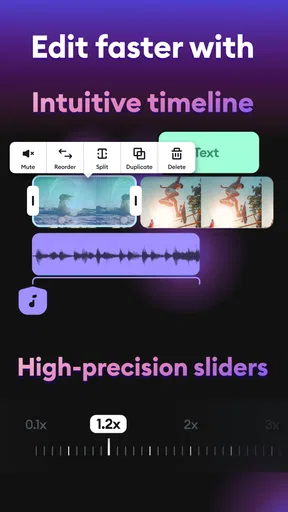
First things first, downloading Splice - Video Editor & Maker was a breeze. Available on both Android and iOS, it’s a quick download, and before you know it, you’re ready to dive into video editing. The app welcomes you with a clean and intuitive interface. It doesn’t overwhelm you with options right off the bat, which is a huge plus in my book.
That lighter first impression is useful if you have not edited video before, but it does not remove the need to learn the timeline. I suggest starting with a short clip rather than importing a whole camera roll. You can get a feel for selecting footage, trimming an unwanted start, and checking the result before investing time in a longer montage. A small test project also makes it easier to spot whether your chosen text and pacing remain legible on a phone screen.
Once you fire up the app, you’re prompted to create a new project. Here’s something cool: you can choose your media from your phone’s gallery or directly from your cloud storage. This integration is seamless, and it’s perfect for someone like me who has media scattered all over the place.
For a practical workflow, I would gather the clips I expect to use before arranging them. A weekend recap, for example, is easier to shape when I first choose a few distinct moments—arriving, the activity, and a closing shot—rather than trying to make every recording fit. That simple selection step helps keep the finished video focused and saves time adjusting a crowded sequence later.
Diving Into Editing
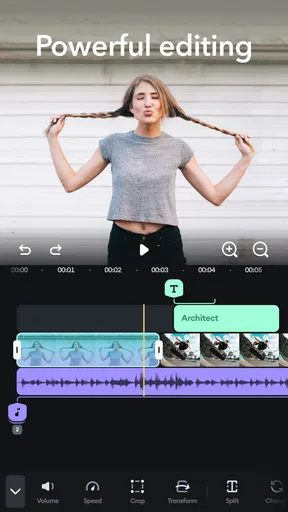
Now, let’s talk about the features. Splice offers a wide range of tools that cater to both beginners and seasoned editors. You’ve got your basics like trimming, cutting, and cropping, but it’s the additional features that really make Splice stand out.
Worth Reading Before You Choose

Flipboard Shows What News Apps Must Do Beyond the Feed

Switching to Android Auto Means Rethinking Your Driving Routine

Google Calendar Makes a Crowded Week Easier to Manage

Ludo King Makes the Most of the Minutes Between Plans

Baby Panda World Brings Quick Play to Modern Phones, but Its Game Library Feels Busy

ESPN’s Live Game View Makes Following Close Games Easier
When I edit on a small screen, I treat each change as something to review rather than assume is right. After trimming, I replay the join between clips; after cropping, I check that faces and important details remain in frame. This is particularly helpful when a video will be viewed on different-sized screens, because a crop that looks fine while editing can feel cramped when the final clip is watched full-screen.
The app offers a decent selection of transitions and effects. They’re easy to apply and make your videos look professionally edited. I spent a good chunk of time playing around with these, and I have to admit, I was pretty impressed. Whether you’re looking to create a slideshow or a complex video montage, Splice has got you covered.
My practical advice is to use effects with restraint. A transition can make a change of scene feel deliberate, but applying a different one to every cut can distract from the footage and make a personal recap feel overly busy. I usually begin with clean cuts, then add a transition only where it clarifies a change in time or place. That approach also makes it easier to notice whether a visual effect is helping the story or merely competing with it.
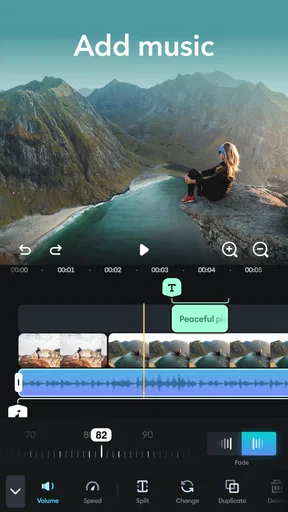
One of my favorite features is the audio editing capabilities. You can add music from your library or explore a variety of tracks included within the app. The ability to sync audio perfectly with video is a feature I didn’t know I needed until I used it.
Audio deserves an extra check before sharing: music that feels right while editing may overpower speech or the natural sound that makes a clip meaningful. I listen through the whole sequence once with attention on the sound, not the picture, and adjust the timing if the beat makes a cut feel awkward. For a quick birthday greeting or a clip with someone speaking, preserving understandable voices matters more than adding a track just to fill silence.
Advanced Features for Creators
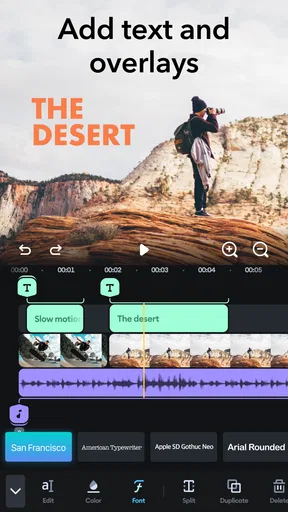
For those who love to add text overlays or captions, Splice offers a wide variety of fonts and styles. You can customize the size, color, and placement, which is fantastic for creating engaging content for social media.
Text can support viewers who are watching in a place where they cannot turn the sound up, but it only helps if it stays readable. I keep captions brief, give them enough space from the edge, and preview them over both bright and dark scenes. A busy background can make even a well-sized title difficult to follow, so I choose a calmer moment for important wording rather than squeezing a long explanation over fast-moving footage.
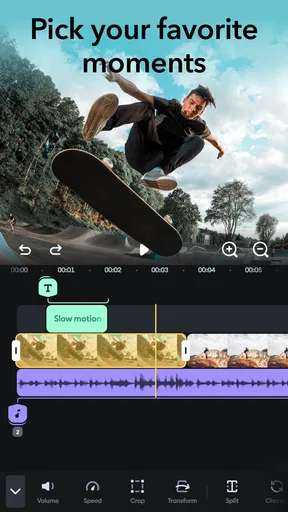
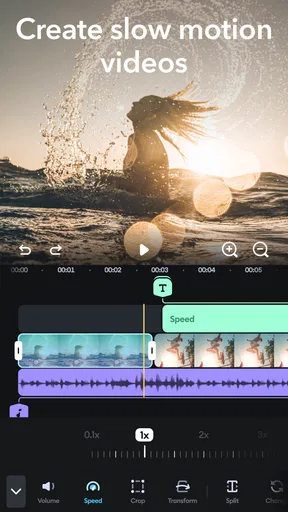
Another standout feature is the speed control. You can speed up or slow down your clips with ease. This is perfect for creating those dramatic effects or fast-paced highlight reels. I had a blast experimenting with this on my travel videos.
Speed changes are most effective when they serve a clear purpose. Slowing a brief moment can draw attention to an action, while speeding up a stretch of repetitive movement can keep a short recap moving. I avoid changing speed repeatedly within a single scene: the shift can be disorienting, and it may make footage harder to interpret for viewers who rely on visual cues. Checking the clip with its original audio in mind is also a good way to catch changes that no longer feel natural.
The app also supports 4K export, which is a big deal if you’re looking to maintain that high-quality resolution. Sharing your videos directly to social media platforms is smooth as butter. With just a few taps, your masterpiece is out there for the world to see.
For a low-stress finish, I would watch the exported video from beginning to end before posting, rather than trusting the editing preview alone. That final pass catches a title that disappears too quickly, a transition that feels abrupt, or an ending that cuts off before the moment lands. If I am making a clip for a particular platform, I also consider whether the framing suits how people are likely to view it; the best resolution cannot rescue a composition that leaves the subject awkwardly placed.
Readability, controls, and different situations
Splice is a visual editor, so using it depends on being able to see the footage and identify controls on a touchscreen. Its uncluttered opening makes the first steps less intimidating, but editing still involves looking closely at clips and making choices in a compact workspace. People who prefer large screens, keyboard shortcuts, or highly detailed timeline control may find a desktop editor more comfortable, particularly for long projects.
Motor comfort can vary from person to person and from one session to another. Trimming and placing text call for deliberate touch input; if precise taps are tiring, I would keep projects short, take breaks, and avoid trying to perfect every cut in one sitting. A phone stand or a stable surface can make a longer session less awkward, though the editing itself remains touch-based. I would also leave a little extra time for revisions instead of planning to finish a complicated montage during a rushed commute.
There are situations where a phone editor is genuinely convenient: selecting a few clips after a day out, making a quick highlight for friends, or adding a title before sharing a short update. It is less suitable when I need to inspect many tracks at once, make intricate frame-level adjustments, or work for a long stretch without a larger display. In those cases, a desktop editor gives more room to see the whole sequence, while a basic built-in phone editor may be enough if all I need is a simple trim.
Who will get the most from it
I would recommend Splice to someone who wants more control than a bare-bones gallery editor but does not want to begin with a complex desktop-style workflow. A parent assembling a short family highlight, a traveler selecting a handful of moments, or a creator preparing a concise social clip can benefit from combining trimming, text, speed adjustments, and music in one mobile project. The useful trade-off is convenience: the phone is already where the footage lives, so a small edit can happen while the idea is still fresh.
For example, after a day trip I might choose a few clips that show the journey, one memorable activity, and the view at the end. I would trim pauses, keep transitions simple, add a short title, and listen once for music that overwhelms conversation. That is a realistic job for a mobile editor and a good way to learn the controls without turning a casual project into a lengthy production.
Someone who routinely builds long videos, needs meticulous control over many layers, or depends on a spacious interface should consider another kind of editor. Splice’s broad set of tools does not make a phone screen equivalent to a desktop workspace. Likewise, if the only task is removing the beginning and end of one clip, the extra creative options may be unnecessary; the quickest tool is often the one already built into the device.
Cost, fit, and everyday trade-offs
Splice is a free app from Bending Spoons in the video-editing category. It has a 3.7 average from around 138,000 ratings, with more than 5 million installs, so there is a substantial audience for this kind of mobile workflow. In-app purchases range from $0.99 to $209.99 per item, which makes it sensible to check what a particular paid option offers before committing. I would first decide what I actually need from a project and try the free experience before paying for extras.
It is rated for Everyone and was released on May 5, 2021. Those details may help when choosing an app for a household device, but an age label is not a substitute for an adult checking whether a child is ready to edit and share videos. I would guide younger users through selecting footage and reviewing a finished clip, especially when it includes other people or personal moments.
Compared with a simple built-in editor, Splice gives me more room to shape a video with text, music, effects, and speed changes. Compared with a full desktop editor, it is easier to reach for a quick mobile project but less suited to sustained, highly detailed work. That middle ground is the point: it is not automatically the best choice for every edit, yet it can be a practical one when convenience and a useful set of creative controls matter more than a large workspace.
One question I would ask before starting is whether the result needs to be polished for a particular viewing context. A clip meant for friends may need only clear cuts and a title; a public-facing post deserves a closer review of captions, framing, sound, and pacing. Another is whether I have enough time to check the finished export. If I cannot watch it through before sharing, I would keep the edit simpler and reduce the chance of overlooking an awkward cut.
Final Thoughts
All in all, Splice is a fantastic tool for anyone interested in video editing on-the-go. It’s packed with features that rival even some desktop editors, yet it remains user-friendly and accessible. Whether you’re just starting out or you’re a seasoned pro, Splice offers something for everyone.
The app is free to download with some in-app purchases, which means you can try it out without any commitment. Honestly, for the functionality it offers, it’s a steal. If you’re serious about video editing, I’d highly recommend giving Splice a shot. It’s not just an app; it’s a creative companion that fits right in your pocket.
My recommendation comes with a clear qualification: I see it as a capable option for quick, thoughtful edits, not a universal solution for every creator or every access need. If its touch-driven approach feels comfortable and your projects are short enough to review on a phone, it can make sharing a well-shaped video much less of a chore. If you need a larger canvas, more precise control, or a workflow tailored to different input needs, choosing another editor is a reasonable decision rather than a failure to make this one work.
Pros
- User-friendly interface for easy editing.
- Comprehensive library of soundtracks.
- High-quality export options available.
- Fast rendering speeds for quick results.
- Wide range of effects and filters.
Cons
- Limited features in free version.
- Occasional crashes on older devices.
- Requires internet for some features.
- Subscription can be pricey for casual users.
- Some advanced tools are hard to find.
FAQs for Splice - Video Editor & Maker
What is Splice - Video Editor & Maker used for?
Splice - Video Editor & Maker is an intuitive app designed to simplify video editing on mobile devices. It allows users to create professional-quality videos with ease, offering features like trimming, transitions, effects, and music integration. Ideal for content creators, it provides tools to enhance video storytelling without needing advanced editing skills.
Is Splice available for both Android and iOS devices?
Yes, Splice is available for both Android and iOS platforms. This cross-platform availability ensures that users can enjoy seamless video editing experiences regardless of their device. Whether you're using an iPhone or an Android smartphone, you can download Splice from the respective app stores and start editing immediately.
Does Splice offer any free features, or is it all paid?
Splice offers a range of free features that users can utilize to edit videos effectively. While it has a subscription model that unlocks more advanced features and tools, the free version is robust enough for basic video editing. Users can try these features without any initial investment, making it accessible for beginners.
What types of video formats does Splice support?
Splice supports a variety of popular video formats, ensuring compatibility with most devices and cameras. This includes formats like MP4, MOV, and AVI, allowing users to import and edit videos without compatibility issues. This flexibility ensures that users can work with their preferred video files seamlessly.
How easy is it to learn and use Splice for beginners?
Splice is known for its user-friendly interface, making it accessible for beginners. It offers guided tutorials and straightforward navigation, allowing new users to start editing quickly. The app’s design focuses on simplicity, enabling users to produce high-quality videos without needing extensive knowledge or experience in video editing.


